User Interface & Available Commands / Main User Input & Program Windows / H.A.T. Base Dialog - Usage ! | Send comments on this topic |
Command: "OL_HY"

Displays the main H.A.T dialog. This is a modal dialog, which locks the active document.
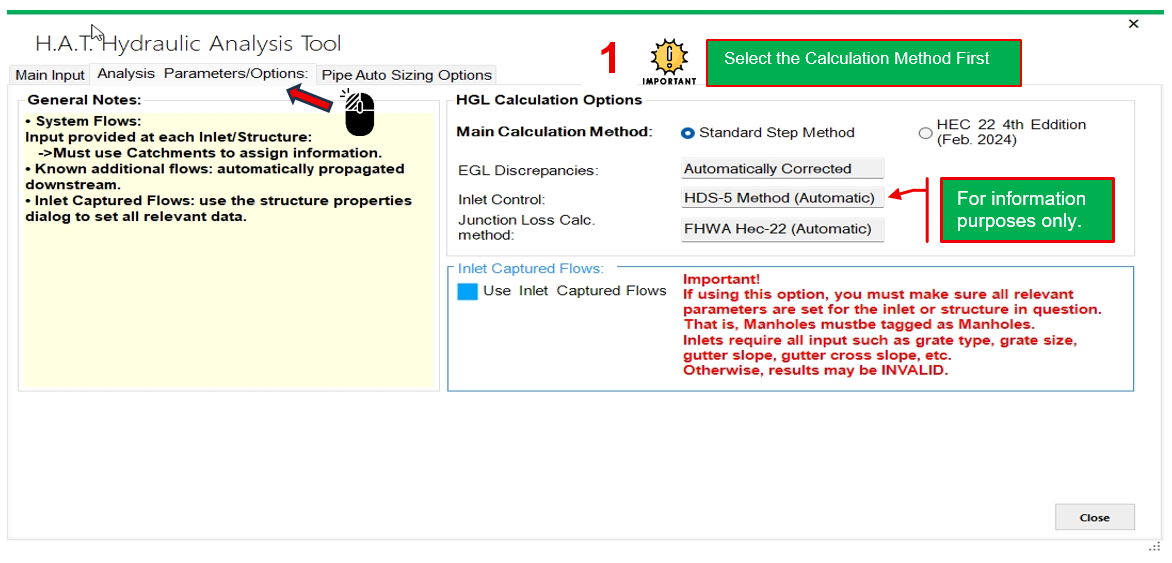
1. Select Calculation Method (Calculation Engine):
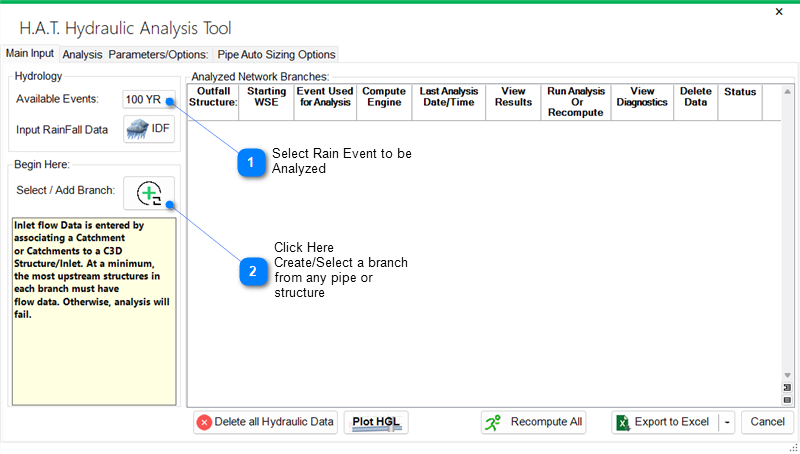
2. Select Rain Event & Branch
3. Set the Starting WSE to be used for the analysis:
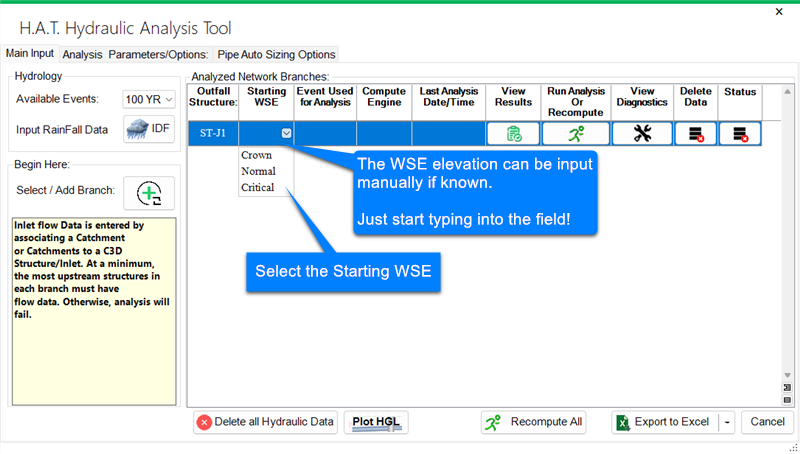
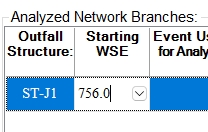
ØThe WSE can be input manually. Example, if Hydrology analysis was performed for the detention pond that outfall "ST-J1" discharges to.
ØThe calculation engine will check the validity of the provided WSE. That is, if for example, the WSE falls below the pipe invert, then it is flagged as invalid and the correct starting WSE will be set based on flow conditions.
4. Running the Calculations.
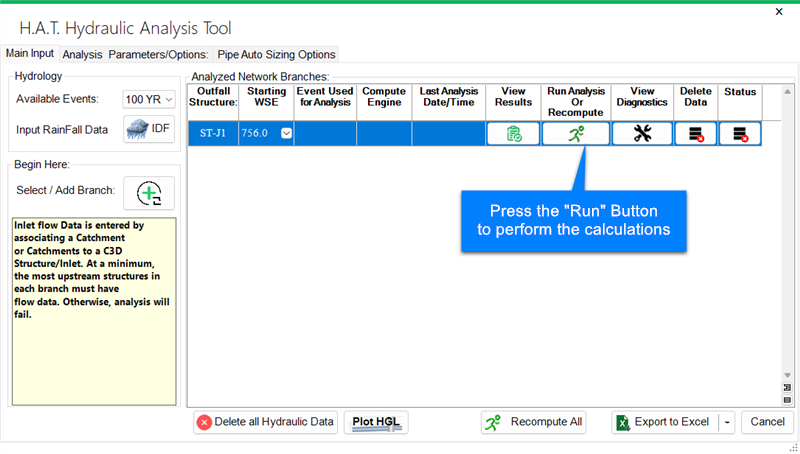
5. Applying Results to the Civil 3D pipes and structures of the branch that was just analyzed.
When the "Run" button is pressed and the analysis is successful, you will have the option of applying the results to the structures and pipes in the branch.
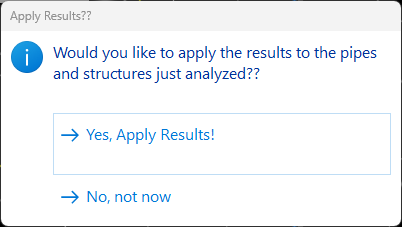
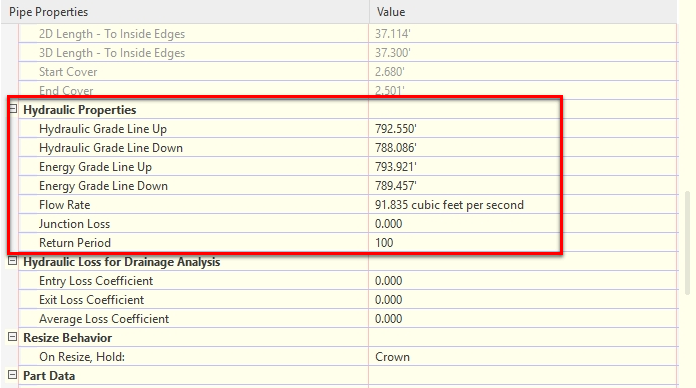
What does that mean? => Do you want to update the pipe/structure Hydraulic Properties. You can view these properties by displaying the standard pipe or structure properties window. See sample pipe properties with the results applied and the hydraulic properties updated.
If the results are NOT applied, you can still see the results using Branch Viewer (press the View Results Button as shown below). The export to Excel and PDF functions will still work since the raw data is available (unless intentionally deleted!)
6. View and work with Branches
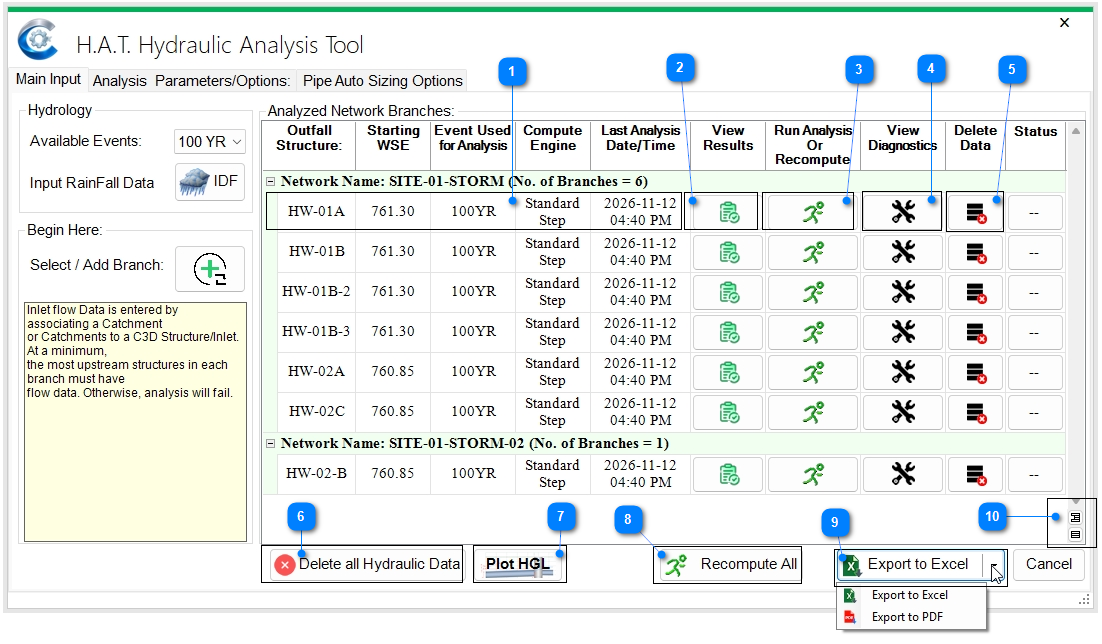
Summary of Branch Analysis Information | |
Displays the name of headwall, starting WSE, Even Analyzed, and Date and Time of Las Analysis |

Open Branch Viewer | |
Opens a branch viewer palette with graphical representation of results. Viewer has editing capabilities. |


View Branch Diagnostics | |
Displays a window showing all the diagnostics and raw calculation information for the branch. This information may be used for further analysis or troubleshooting of pipes and structures. |

Delete Branch | |
Erases all H.A.T. data related to the branch. This DOES NOT delete any Civil 3D pipes, structures or networks! |

Delete ALL Data | |
Batch Deletes all H.A.T. data for all branches analyzed. Note: if this data is deleted but the drawing is NOT saved, then data will persist. |

Plot HGL | |
Creates a profile representing the HGL data for the given event and branch. This profile can be exploded into regular polylines or kept as profile. This is useful when you wish to show HGL lines for more than one event on the same profile view. The style of the HGL profiles can be set by the user. H.A.T. creates a default style to place the HGL plots but the style can be customized per your company standards. |

Batch Recompute | |
This Re-Calculates or Re-Runs all calculation for the branches shown on the form. It Automatically applies the resulting hydraulic data for all structures and pipes of all branches analyzed. |


Copyright © 2026 CivilFX, LLC