User Interface & Available Commands / Main User Input & Program Windows / H.A.T. Base Dialog - Usage ! / Interactive Branch Viewer | Send comments on this topic |
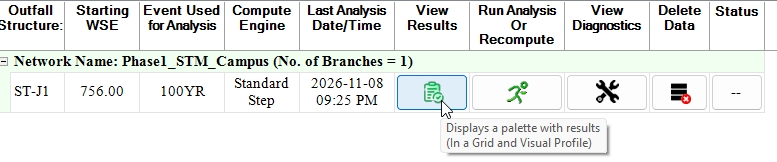
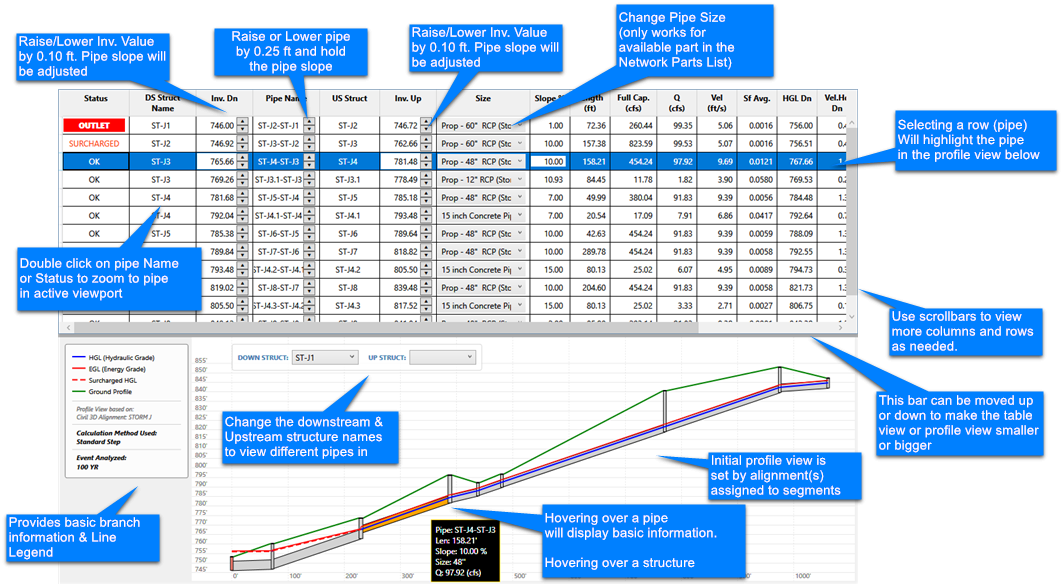
Pressing the "View Results" button for a calculated branch will display the following window:
Important:
ØChanging Invert values, raising or lowering the pipe, and changing the pipe sizes with the interactive buttons DOES change the Civil3D pipe and automatically re-calculates the network.
ØPlease use caution when changing the values, as the viewer may appear to hang briefly while the the branch is re-calculating. Therefore, pressing the buttons in rapid succession may be counter productive.
ØHGL/EGL and other calculated values will update on the table automatically as well.
ØResults are also applied automatically to the pipe/structure's hydraulic properties.
ØThe pipe sizes available depend 100% on the sizes listed in the network parts list. If the drawing is opened in a machine that has different pipe catalogs, you may see blank entries in the list and the changes may NOT take affect, use this feature if you are sure there a no catalog parts list syncing issues. Otherwise, it is suggested to use the built in C3D "swap part" feature and recalculate the network.
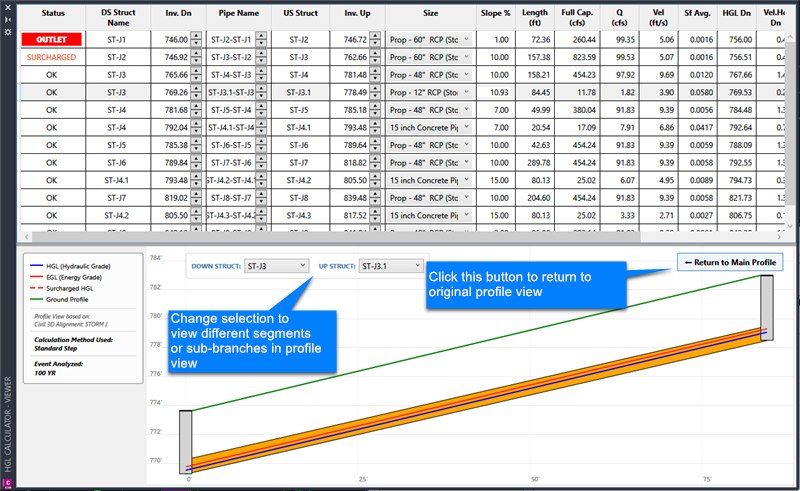
ØIf a pipe is selected in the table and it does NOT highlight in the profile view, it is because the pipe is part of a "sub-branch". Simply select different Down and UP structures in the dropdown lists as shown below to view different segment of the branch.
Here is a view of a different segment of the branch after selecting different Down/Up Structures from the list:
Copyright © 2026 CivilFX, LLC